Configure Single Sign-On (SSO) for Harness MCP
Harness MCP supports authentication through your existing Single Sign-On (SSO) provider. To enable SSO for MCP, add an additional Assertion Consumer Service (ACS) URL (for SAML) or redirect URI (for OIDC) to your Identity Provider (IdP).
An ACS URL or redirect URI specifies where your Identity Provider sends authentication responses after a user signs in. Because Harness MCP uses a different authentication endpoint than the standard Harness platform login, it requires its own ACS URL or redirect URI.
Adding the MCP-specific URL does not affect your existing Harness platform login. Users can continue to access both Harness and Harness MCP through the same SSO provider.
What will you learn in this topic?
By the end of this topic, you will be able to:
- Retrieve the MCP-specific ACS URL or redirect URI from Harness.
- Add the MCP URL to your Identity Provider.
- Configure SSO authentication for Harness MCP.
- Verify that users can authenticate successfully.
Before you begin
Before you configure SSO for Harness MCP, ensure that:
- You have Account Admin or Authentication Settings permissions in Harness.
- Your Identity Provider is already configured for SAML or OIDC authentication with Harness. Go to Single Sign-On (SSO) with SAML to set this up if needed.
- You have administrative access to your Identity Provider.
Configure SAML for Harness MCP
Before updating your Identity Provider, retrieve the MCP ACS URL from your Harness SAML configuration.
- Manual
- Interactive
- Sign in to Harness.
- Go to Account Settings > Security and Governance > Authentication.
- Locate your SAML provider.
- Select ⋮ > Edit.
- Copy the value from Enter this SAML Endpoint URL as your Harness SAML Provider application's ACS URL.
Add the MCP ACS URL to your Identity Provider.
Microsoft Entra ID (Azure AD)
- Manual
- Interactive
- Sign in to the Azure portal.
- Go to Microsoft Entra ID > Manage > Enterprise Applications.
- Select your Harness application.
- Select Manage > Single sign-on.
- In Basic SAML Configuration, select Edit.
- Under Reply URL (Assertion Consumer Service URL), select Add reply URL.
- Enter the MCP ACS URL copied from Harness.
- Select Save.
Troubleshooting
If you receive the following error:
AADSTS50011: The reply URL specified in the request does not match the reply URLs configured for the application.
Verify that the MCP ACS URL has been added and exactly matches the value displayed in Harness.
Okta
Okta handles multiple ACS URLs differently from other Identity Providers. Instead of a simple list of Reply URLs, Okta requires you to enable Requestable SSO URLs and add each additional endpoint with an index value.
- Manual
- Interactive
-
Sign in to the Okta Admin Console.
-
Go to Applications > Applications.
-
Select your Harness application.
-
On the General tab, select Edit in the SAML Settings section.
-
Select Next.
-
Leave the existing Single sign-on URL unchanged.
-
Enable Allow this app to request other SSO URLs.
-
Under Other Requestable SSO URLs, select Add Another.
noteAfter configuration, your Okta application will have three URLs total:
URL Source Purpose SAML Endpoint URL (index 0) Copy from Harness SAML config Harness platform login via HarnessID Additional Reply URL for MCP (index 1) Copy from Harness SAML config Harness MCP login Two URLs must be present. If you remove the SAML Endpoint URL, platform login breaks. If you remove the MCP URL, MCP login breaks.
-
Select Next, then select Finish.
Ping Identity (PingOne)
-
Sign in to the PingOne Admin Console.
-
Go to Applications > Applications.
-
Select your Harness application.
-
Open the Configuration tab.
-
Select Edit.
-
Under ACS URLs, select Add.
-
Enter the MCP ACS URL copied from Harness.
-
Select Save.
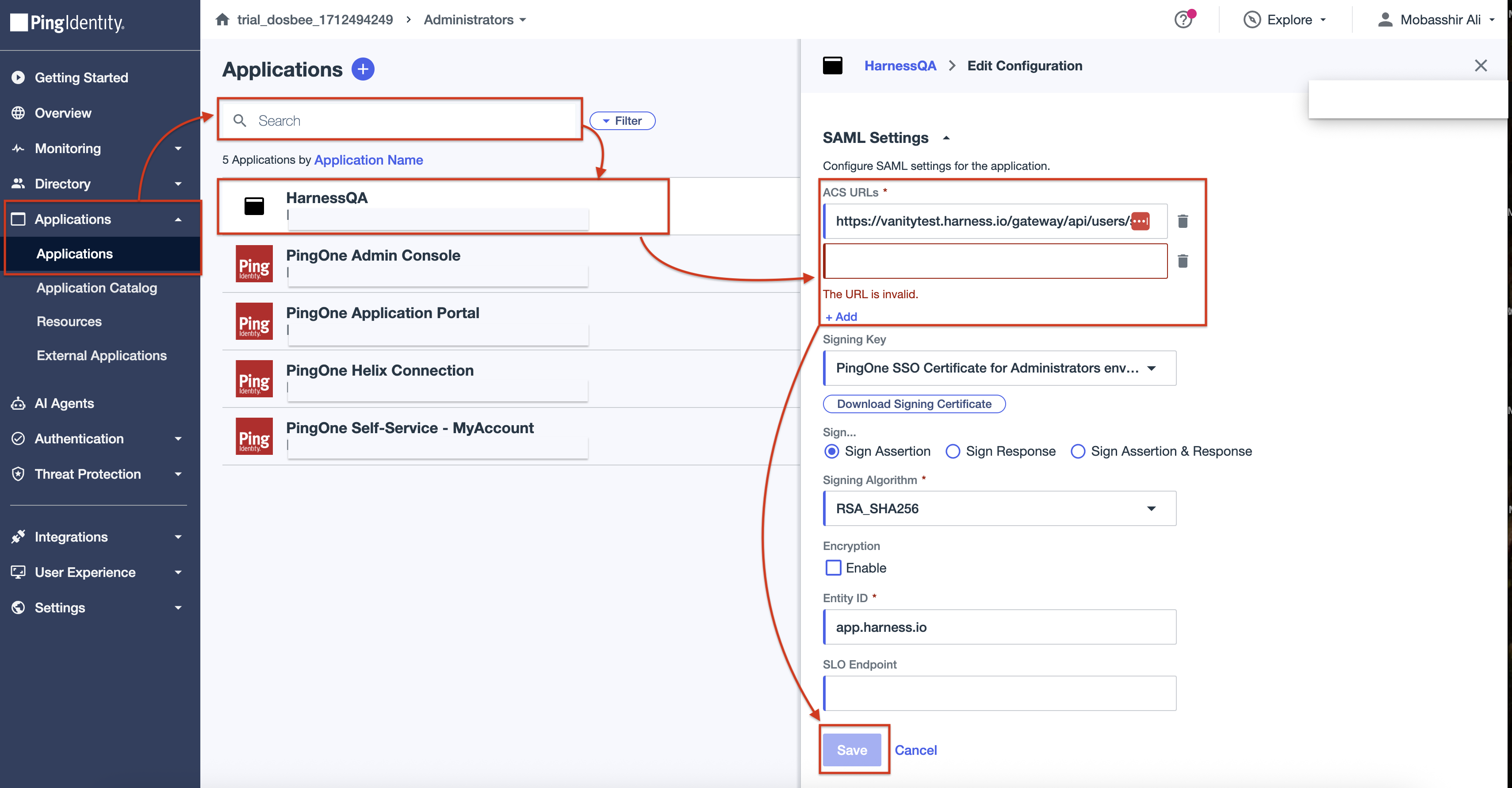
Keep your existing ACS URL and add the MCP ACS URL as an additional entry. Both URLs are required to support authentication for the Harness platform and Harness MCP.
PingOne supports multiple ACS URLs for a single SAML application and automatically selects the appropriate URL during authentication.
You do not need to modify any other SAML settings, including certificates, Entity IDs, signing configuration, or NameID settings.
Configure OIDC for Harness MCP
If your Harness account uses OpenID Connect (OIDC), add the MCP redirect URI to your Identity Provider.
- Manual
- Interactive
- Sign in to Harness.
- Go to Account Settings > Authentication.
- Locate your OIDC provider under Login via OIDC.
- Select ⋮ > Edit.
- Copy the value from Additional Reply URL for MCP (Optional).
Microsoft Entra ID (Azure AD)
- Manual
- Interactive
- Sign in to the Azure portal.
- Go to Microsoft Entra ID > App registrations.
- Select your Harness application.
- Go to Authentication in the left navigation.
- Under Redirect URIs, select Add URI.
- Enter the MCP redirect URL and select Save.
Okta
- Sign in to the Okta Admin Console.
- Go to Applications > Applications.
- Select your Harness application.
- On the General tab, select Edit in the Login section.
- Under Sign-in redirect URIs, select Add URI.
- Enter the MCP redirect URL and select Save.
Ping Identity (PingOne)
- Sign in to the PingOne Admin Console.
- Go to Applications > Applications.
- Select your Harness application.
- Open the Configuration tab.
- Select Edit.
- Under Redirect URIs, select + Add.
- Enter the MCP redirect URL and select Save.
Keep your existing redirect URI and add the MCP redirect URI as an additional entry. Both redirect URIs are required to support authentication for the Harness platform and Harness MCP.
Frequently asked questions
Will adding the MCP URL affect my existing Harness login?
No. Adding the MCP ACS URL or redirect URI does not affect your existing SSO configuration. Users can continue to access both Harness and Harness MCP through the same Identity Provider.
Do I need to update certificates, Entity IDs, or other SSO settings?
No. You only need to add the MCP ACS URL (SAML) or redirect URI (OIDC). No other changes are required.
What happens if I do not add the MCP URL?
Users will not be able to sign in to Harness MCP through SSO. Standard Harness platform login will continue to work.
Can my Identity Provider support multiple ACS URLs or redirect URIs?
Most enterprise Identity Providers, including Microsoft Entra ID, Okta, and PingOne, support multiple ACS URLs or redirect URIs for a single application.
Do I need to make this change if I do not use Harness MCP?
No. This update is only required if you use Harness MCP with SSO authentication. If you only use the standard Harness platform login, no action is required.
Do I need to create a separate application in my Identity Provider for Harness MCP?
No. Add the MCP ACS URL or redirect URI to your existing Harness application. You do not need to create a separate application for Harness MCP.